
User Guide
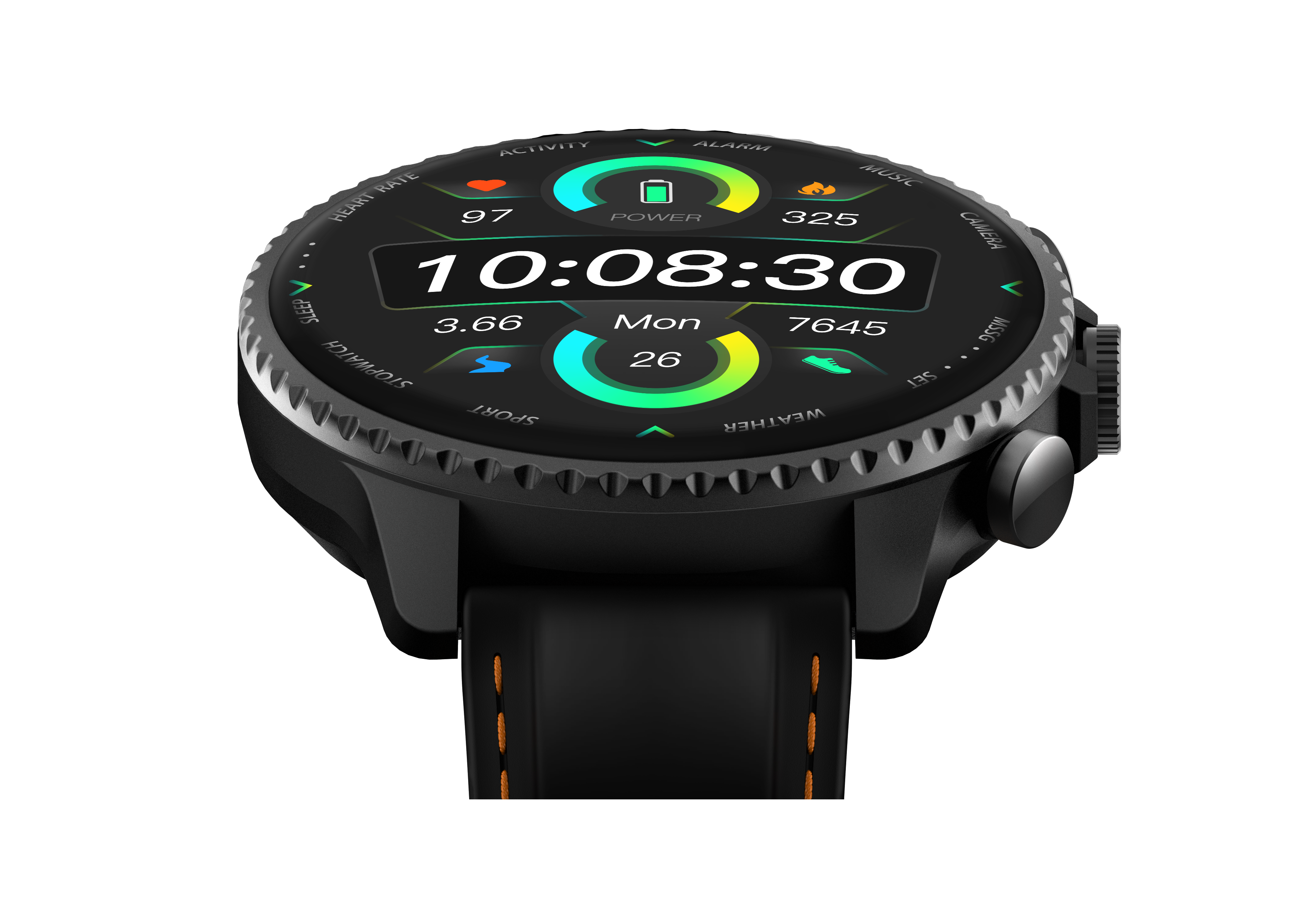
A wearable smart recording device with a dual-microphone array and heart-rate sensor area. Enhanced by AI with automatic noise reduction and speaker identification.
An illustrated printed manual covering device activation, app pairing, and basic operations to help you get started quickly.
Contains important safety information, warranty policy, and regulatory compliance statements. Please read carefully and keep for future reference.
A dedicated charging cable that connects the watch's charging contacts to a power adapter. Please use a certified power adapter that meets standard requirements.
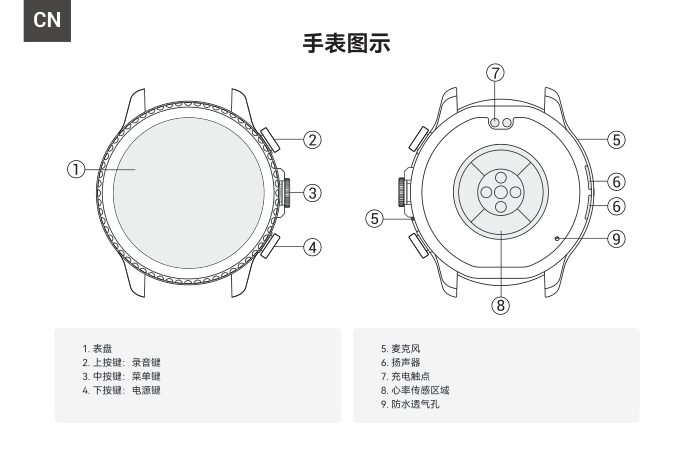
Front View
Rear View
Download the TicNote App
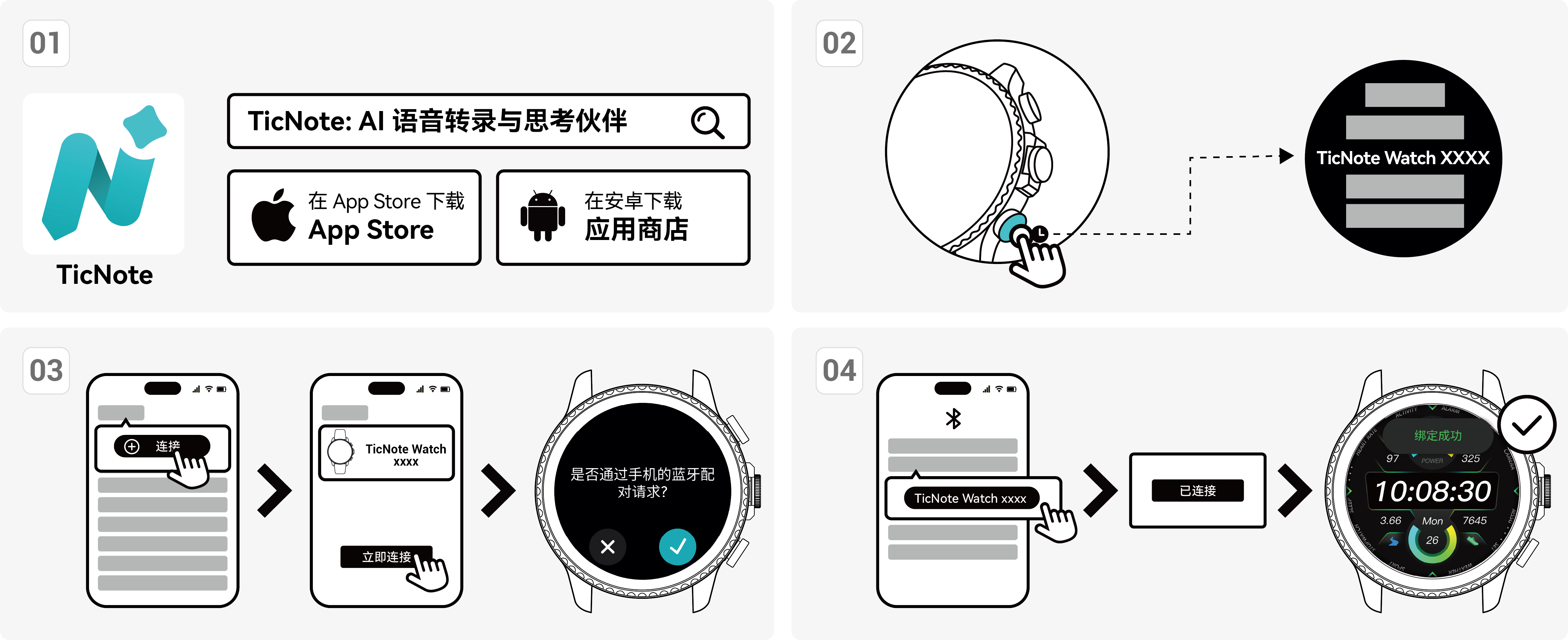
Search for "TicNote" in the App Store or your Android app store, download the app, and create your TicNote account.
On first launch, grant Bluetooth, microphone, and other permissions to ensure full functionality.
Power On & Enter Pairing Mode
Long press the bottom power button for 3–4 seconds to turn on the watch. The watch automatically enters pairing mode and displays its device name "TicNote Watch XXXX".
Connect in the App
In the TicNote App, tap "Start Connection", select "TicNote Watch xxxx" from the device list, and confirm on the watch to complete the connection.
Complete System Bluetooth Pairing
Follow the in-app instructions to pair "TicNote Watch xxxx" via your phone's system Bluetooth settings. When the device shows "Connected", pairing is complete.
Once paired, the watch will automatically reconnect if the connection is lost.
Start Recording
Long press the Record button for 2 seconds to start recording.
Long press the Record button again for 2 seconds to stop. The file will automatically sync to the app when finished.
Highlight Marking
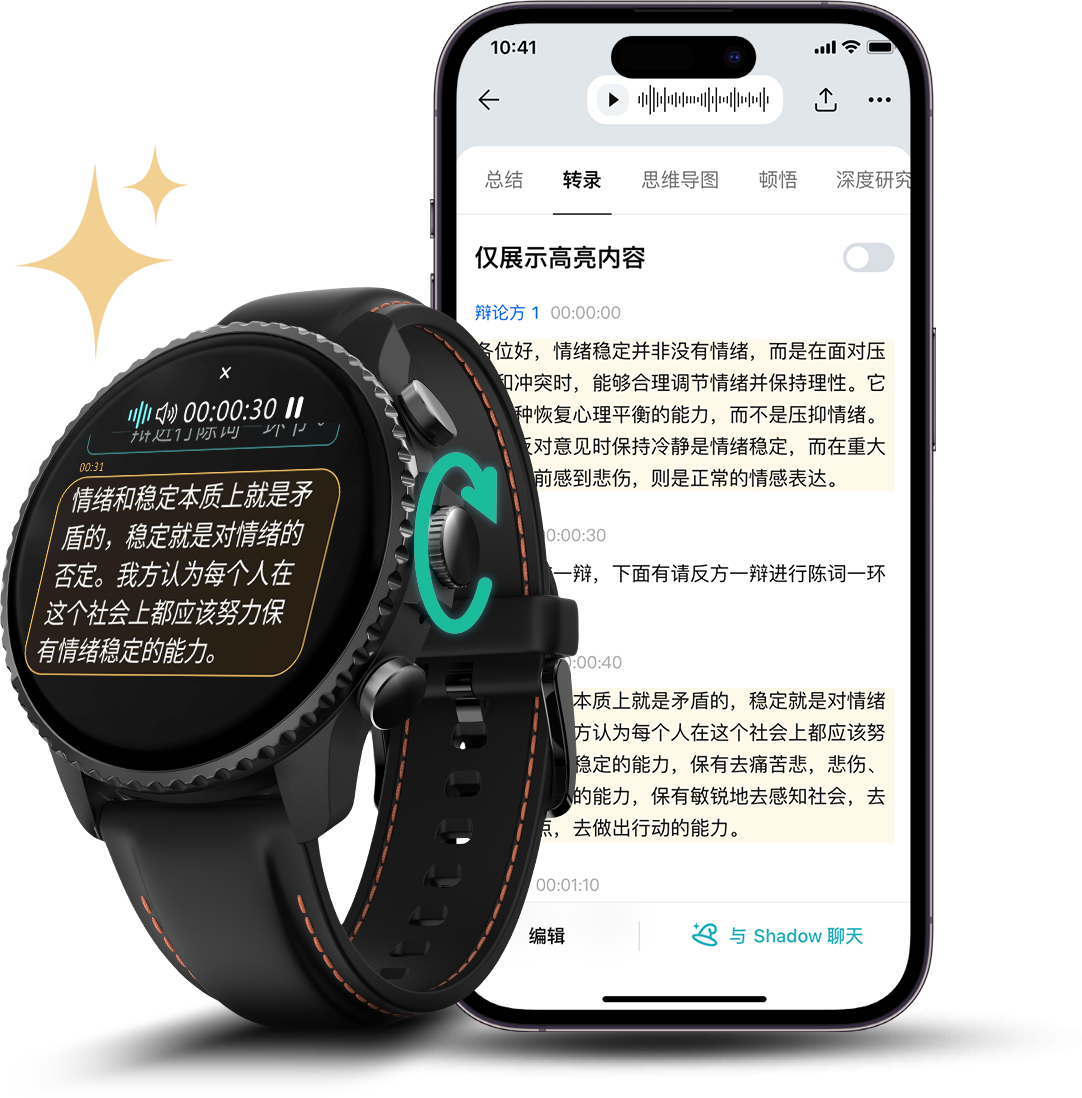
While recording, use the physical buttons to quickly mark key sentences for easy review later.
During recording, rotate the middle button to navigate between sentences you want to highlight.
Press the middle button to highlight the selected sentence. A yellow marker appears on the watch screen. Highlighting works both online and offline — just stay on the recording screen. After stopping the recording, highlighted content is visible in the transcription view within the TicNote App.
In the recording detail page of the app, highlighted sentences are shown in yellow. Toggle "Show Highlights Only" to quickly filter and review key passages.
Recording Modes
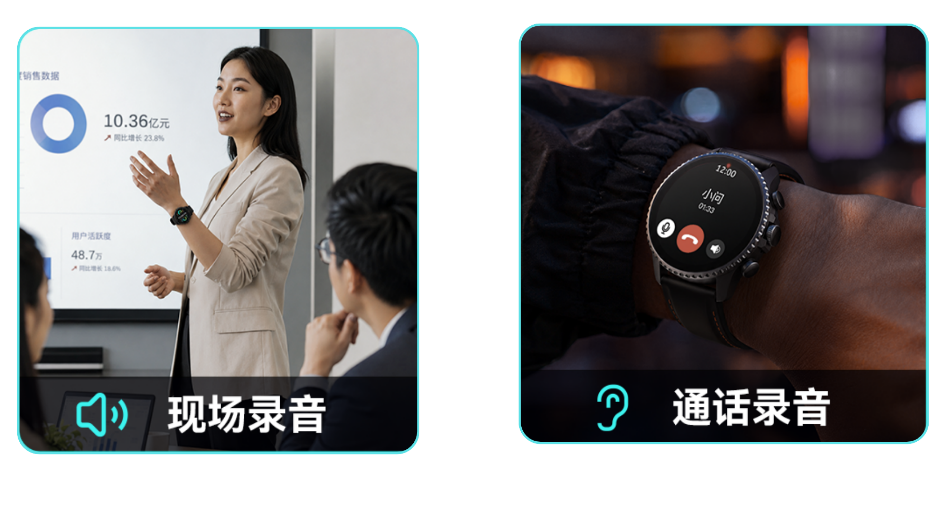
Call Recording
After connecting via Bluetooth, answer calls on the watch and record both sides of the conversation.
Use case: Making or receiving phone calls through the watch.
In-Person Recording
When not on a call, use the watch's built-in microphone to record ambient audio.
Use case: Face-to-face conversations, small meeting rooms.
Focus Recording Mode
Tap the close button at the top of the watch screen to enter Focus Recording mode — the screen shows a red dot. Tap the red dot again to exit.
Note: Screen-off recording is supported by default during Focus Recording mode. You can enable or disable this feature in the watch settings.
Bluetooth is one of TicNote Watch's file sync methods. Once connected to the app, files begin transferring automatically.
In the TicNote App, tap "Enable Wi-Fi Fast Transfer" to join the watch's wireless network. This enables high-speed Wi-Fi transfer to sync files to the app much faster.
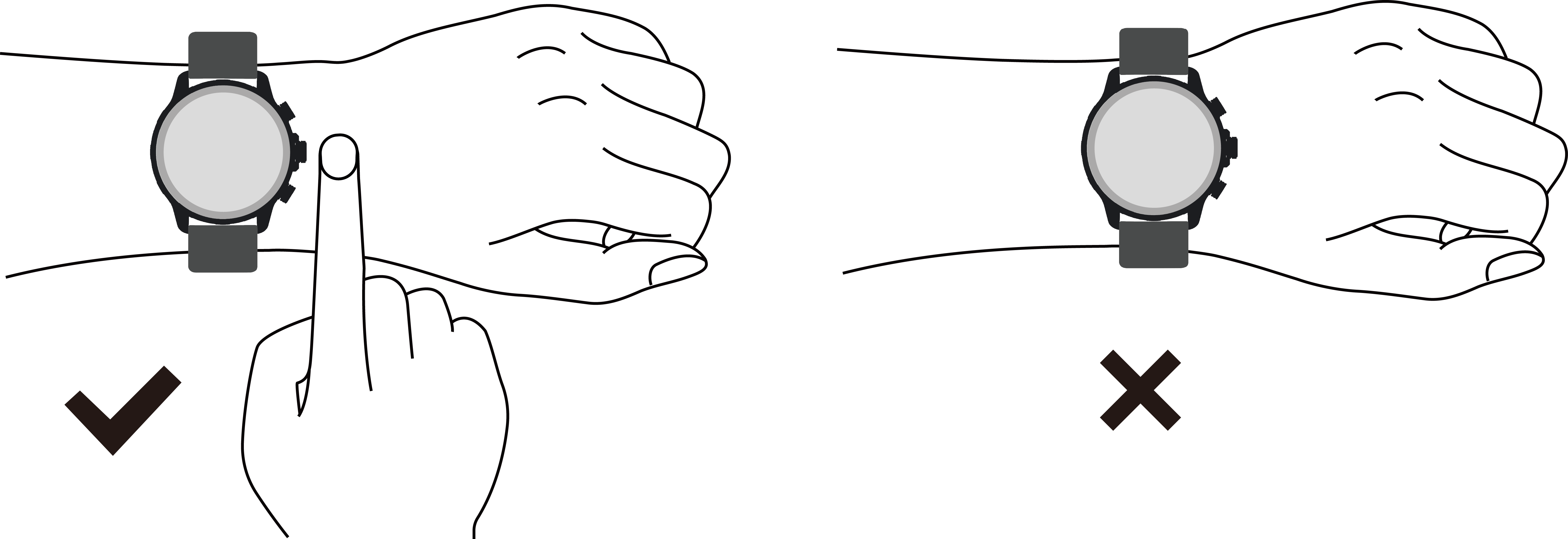
Correct Wearing Position
Wear the watch on your wrist about one finger-width above the wrist bone, adjusted to a comfortable position. Make sure the back of the watch (heart rate sensor area) sits snugly against your skin for accurate health readings.
* Specifications sourced from official hardware documentation
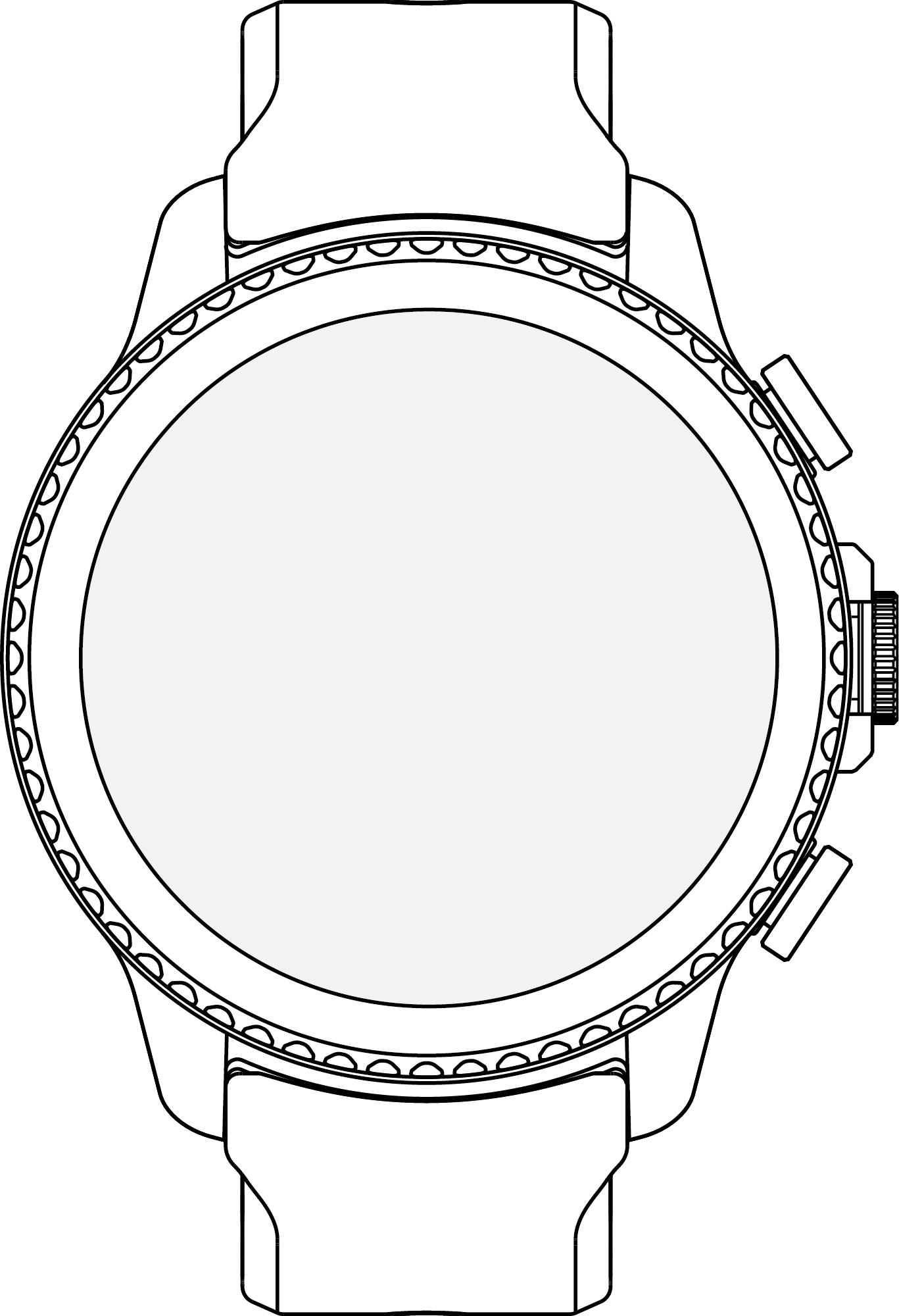
Button Controls
- Long press 2s: Start / stop recording
- Double-press the button: Record random thoughts (60s recording)
- Note: The random thought recording feature on the watch requires firmware V1.2.5 or later.
- Single press on home screen: Open menu
- Rotate while recording: Navigate sentences (for highlighting)
- Single press while recording: Highlight selected sentence
- Long press 3–4s: Power on / off
- Long press 12s: Force restart (if unresponsive)
- Long press on home screen: Open Watch Face Center
- Swipe left / right: Switch watch faces
Gesture Controls
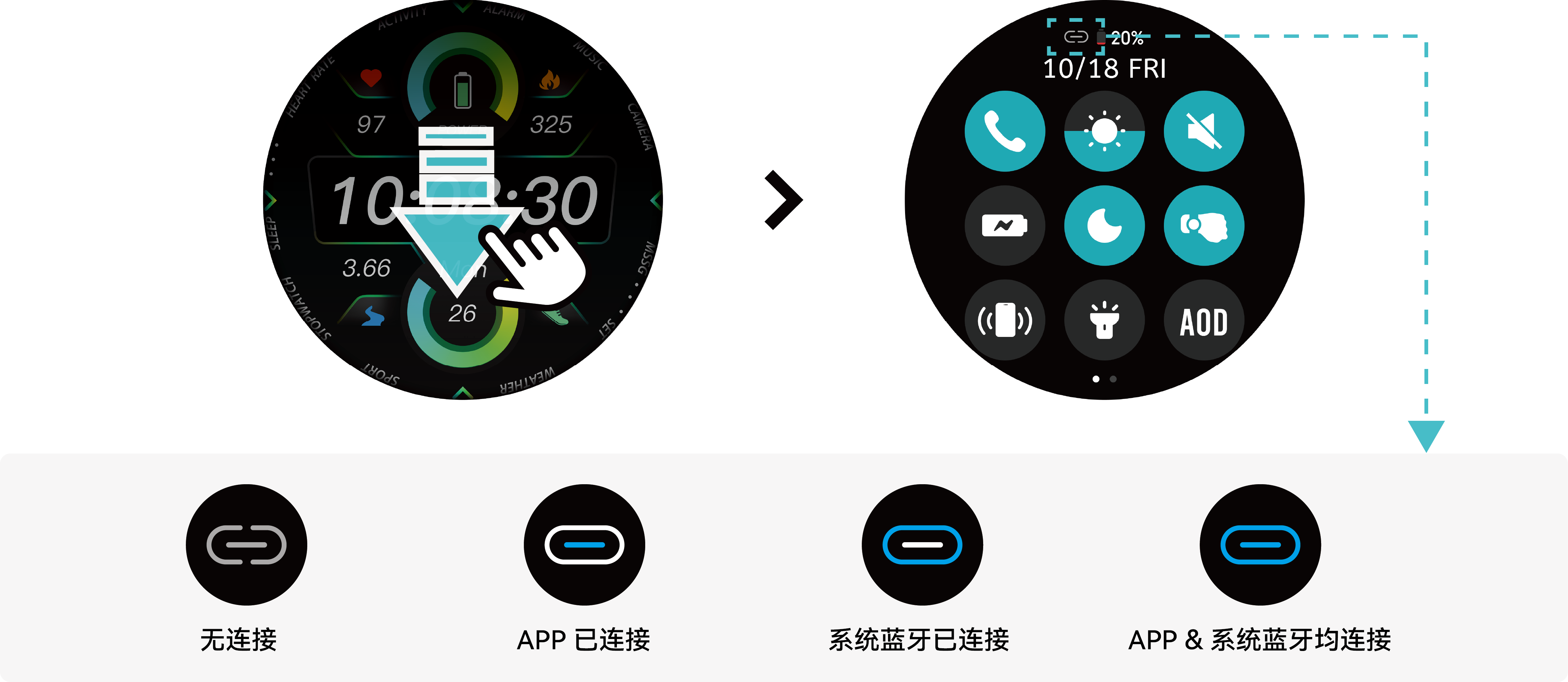
Open quick settings
View summary notifications
Sub-function menus
Quick-access widgets
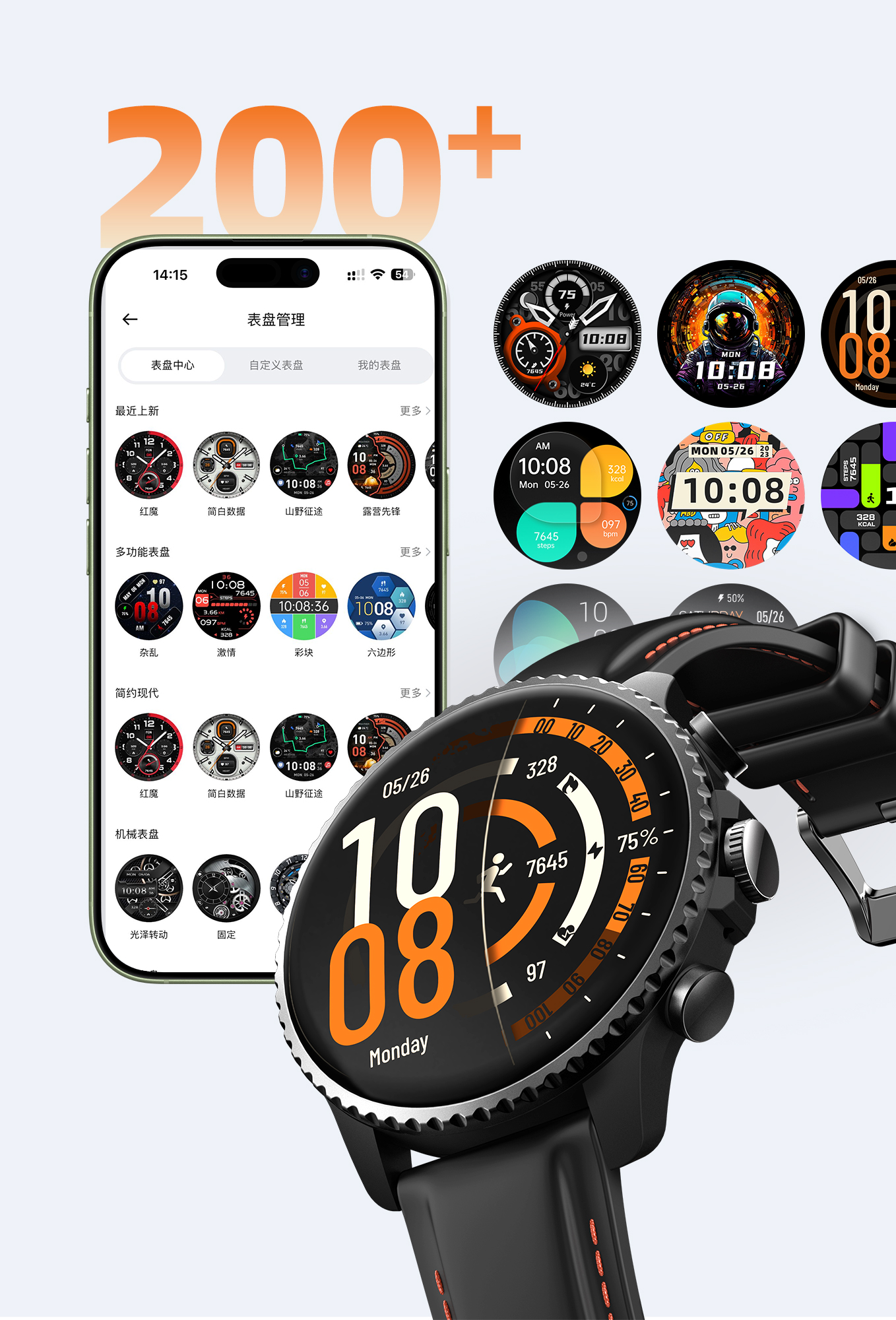
Browse and download more watch faces online
Manage installed faces; swipe left/right to switch
Step-by-step wizard: Background → Key Info → Font Color → Preview
Featured Watch Faces
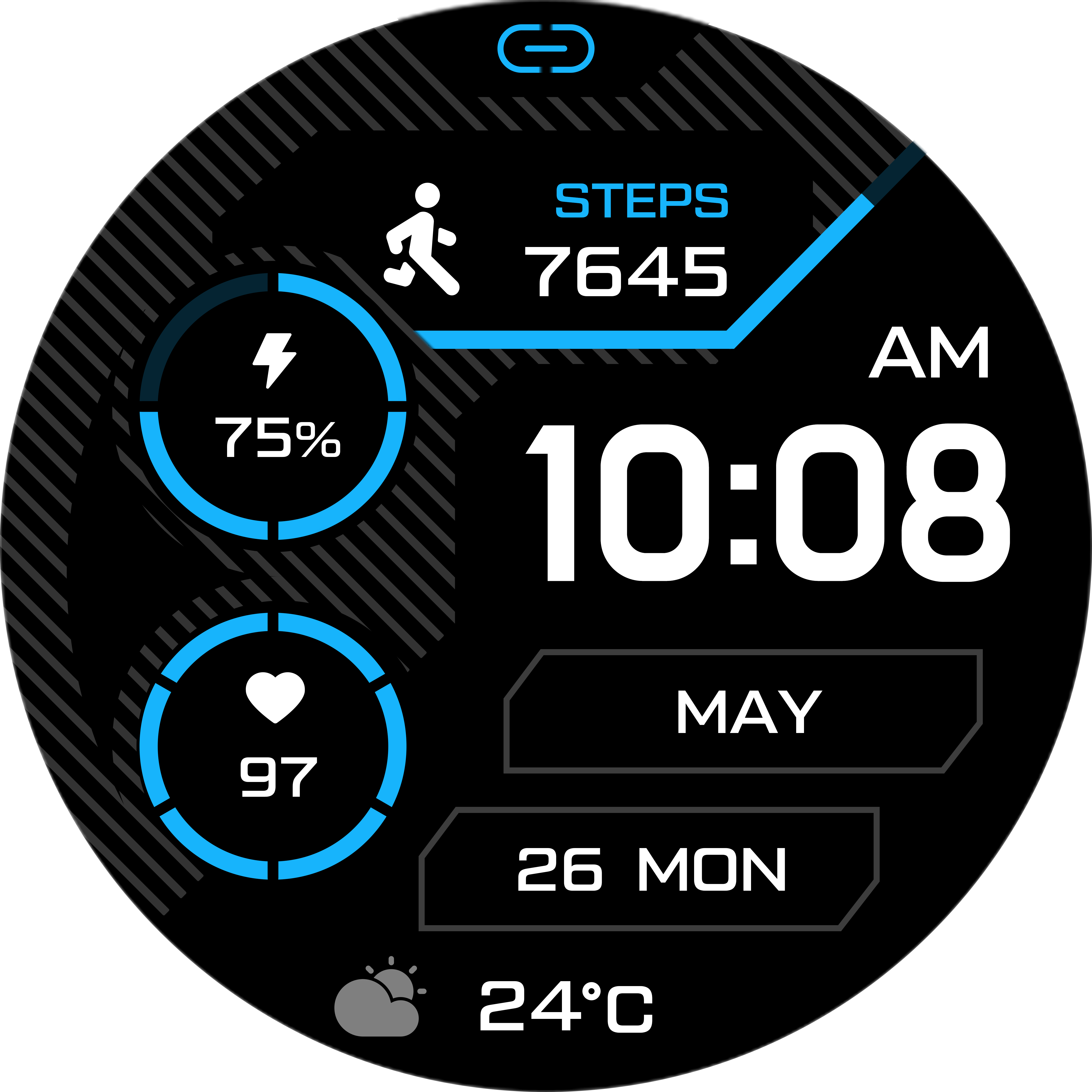
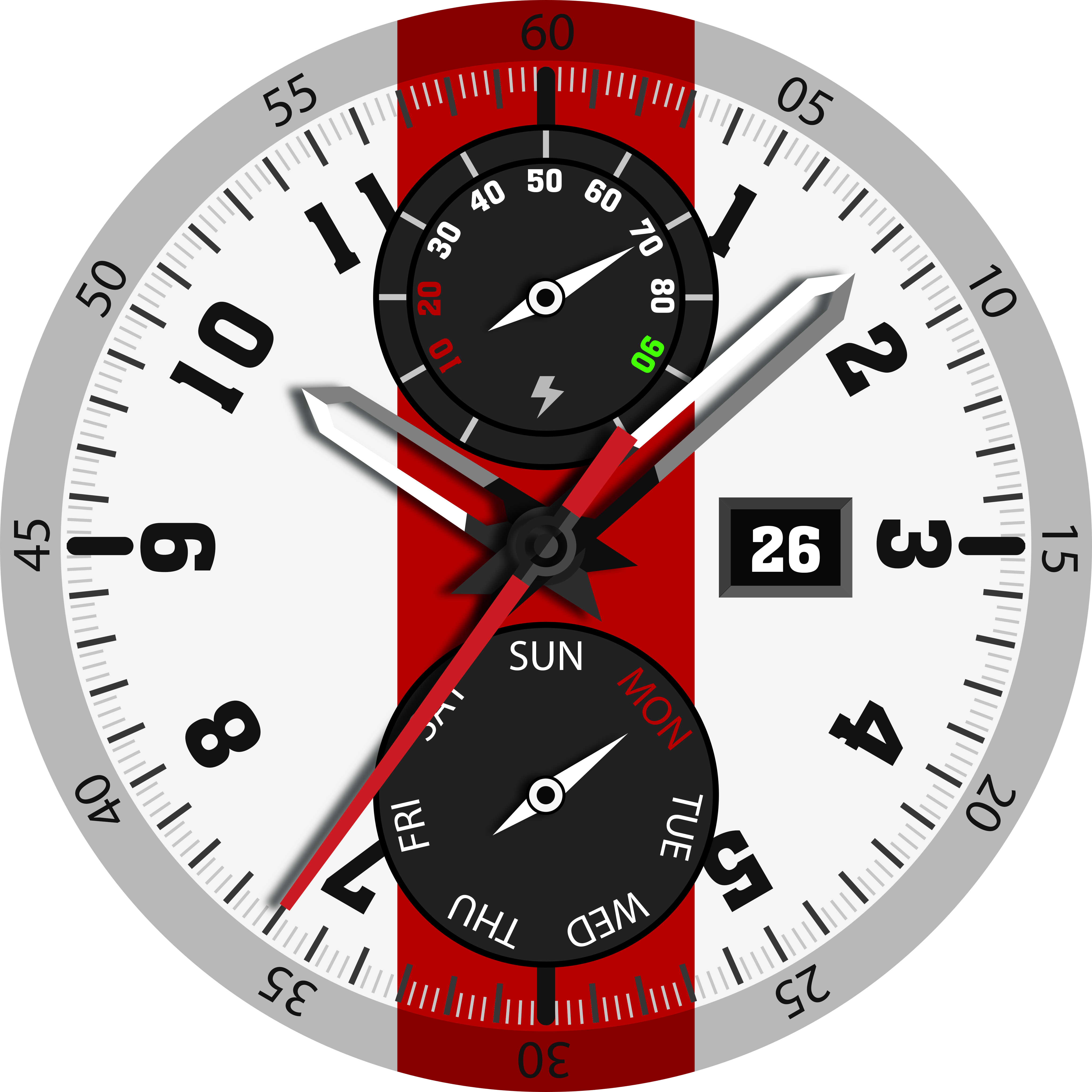
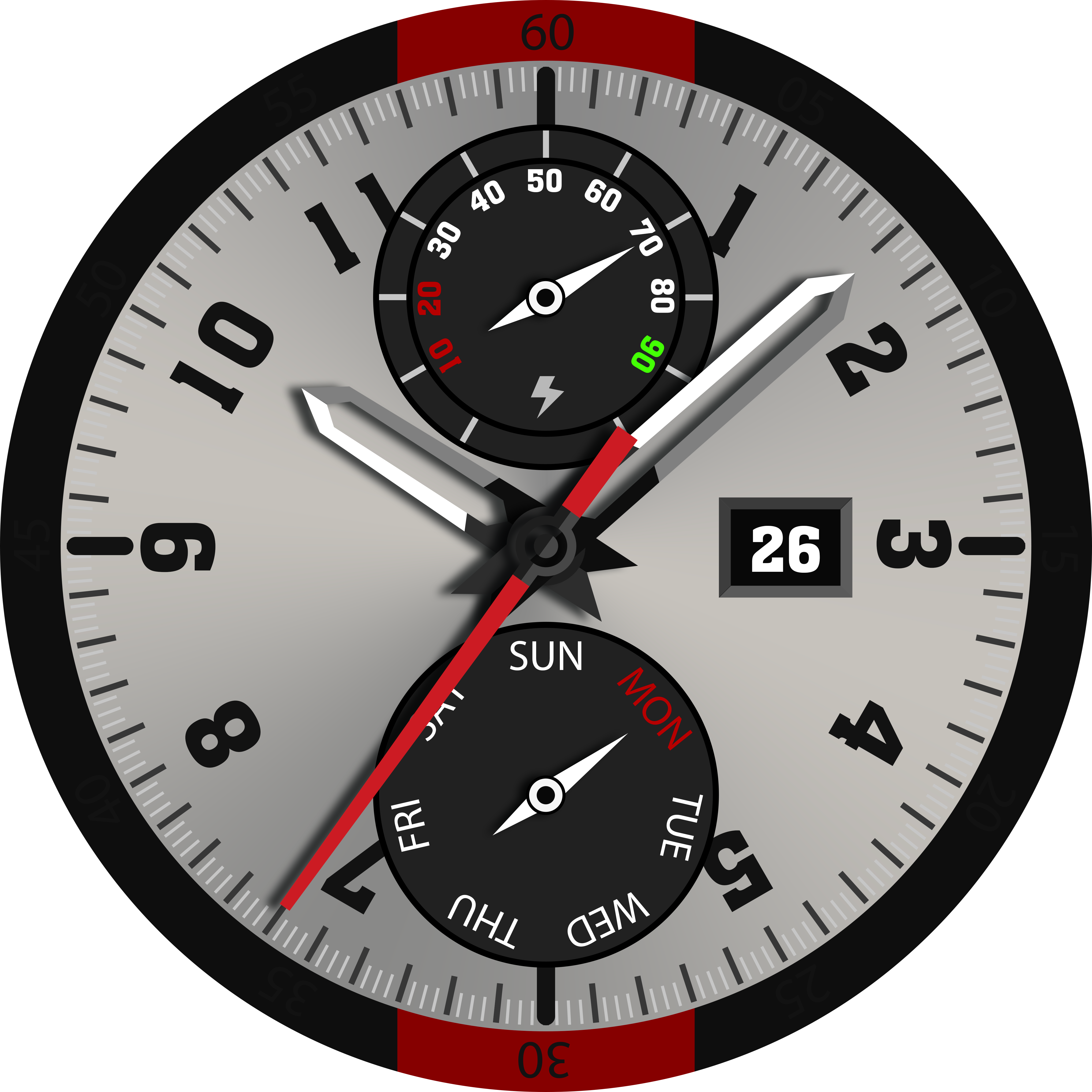
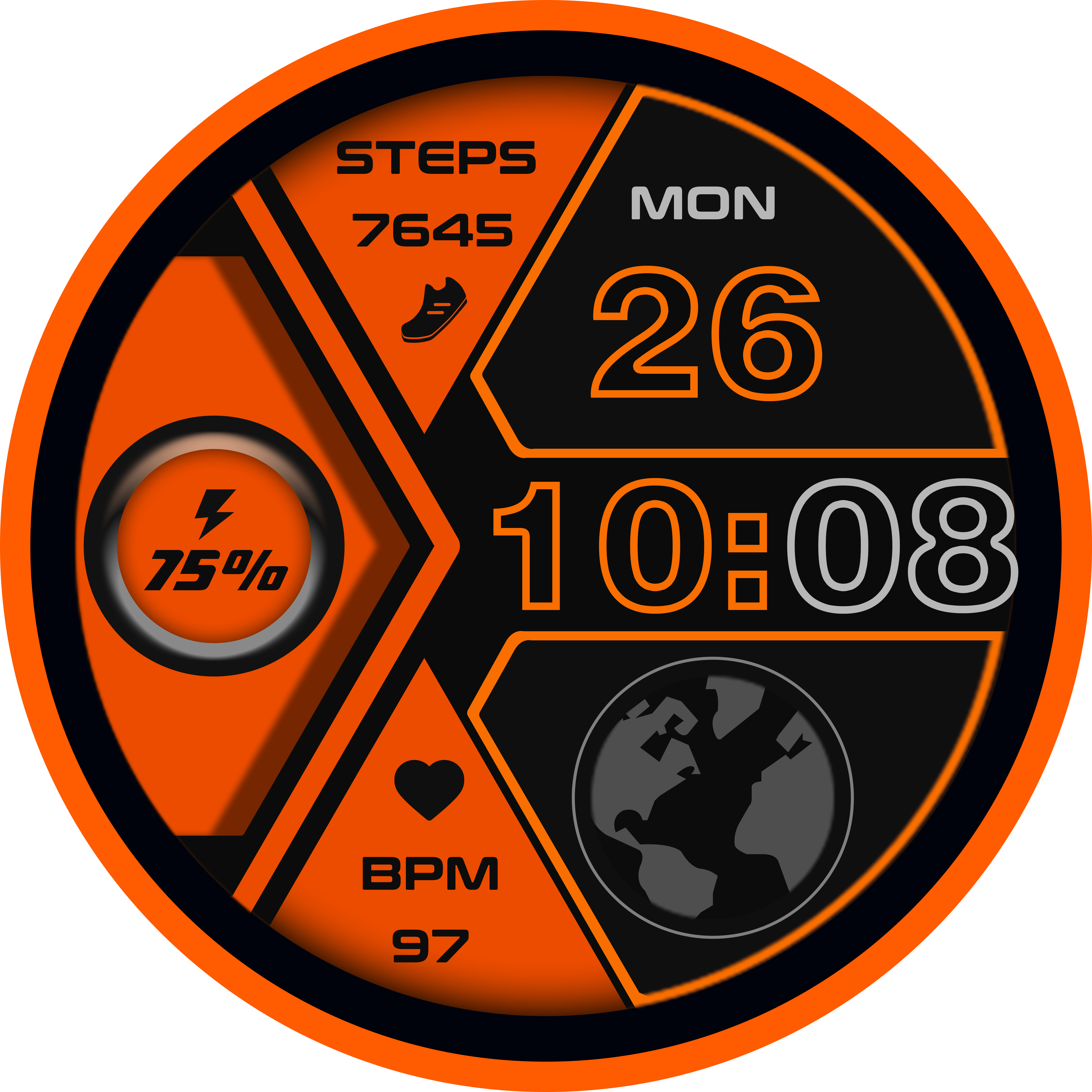
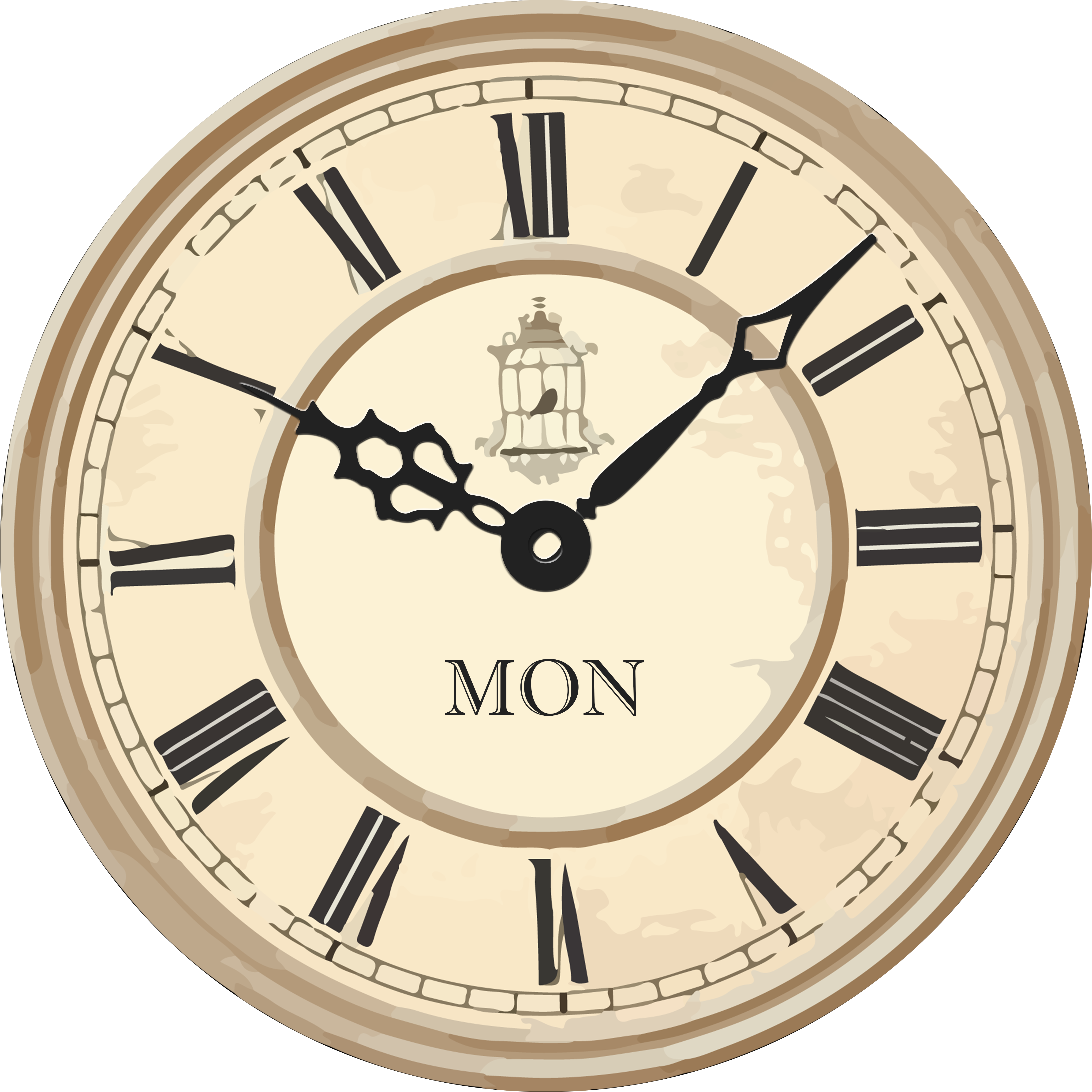
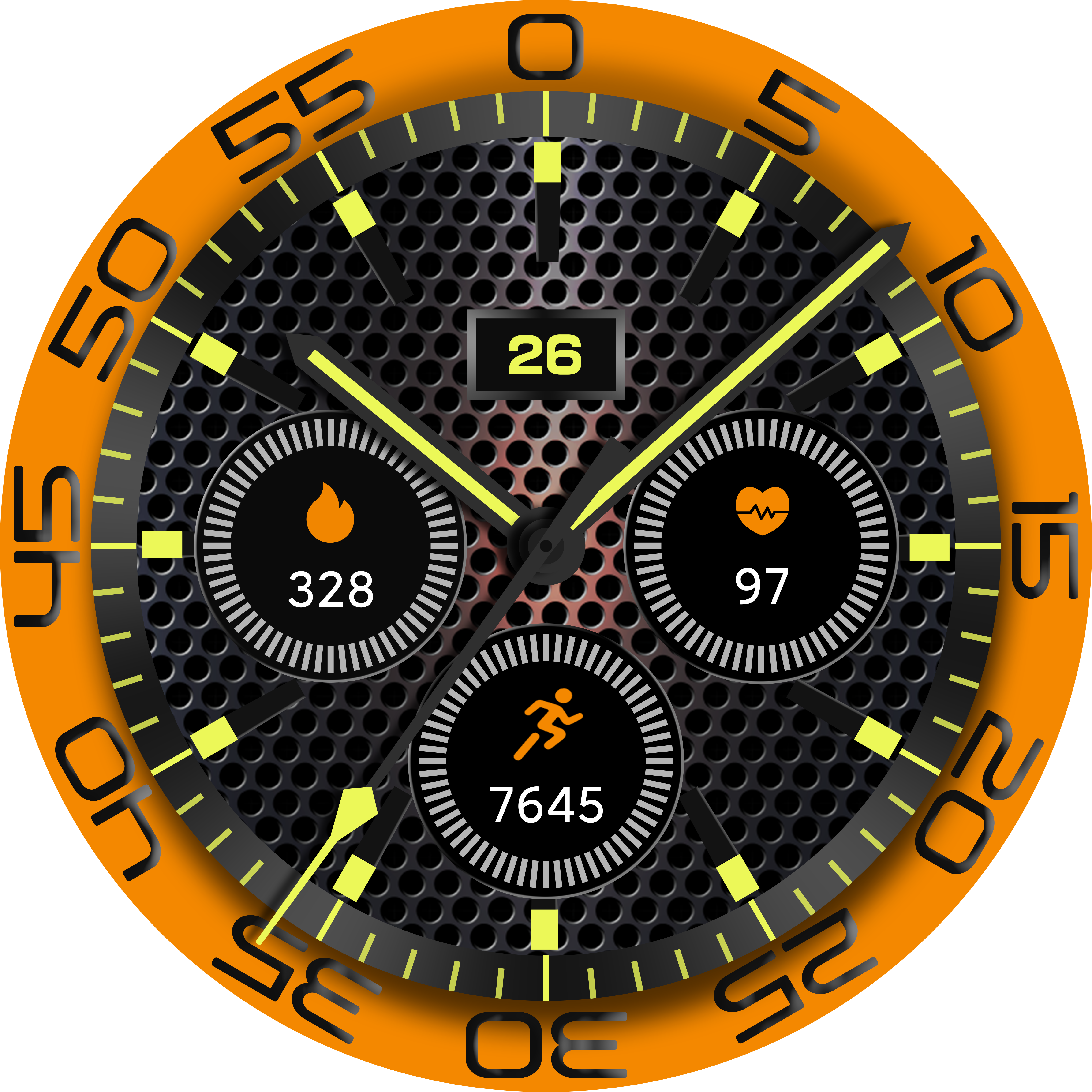
Watch Face Capacity
The Watch Face Center currently offers 240+ online faces that can be synced to the watch via the app. The watch supports up to 14 built-in face slots: 12 preset faces + 1 custom face + 1 online face.
How to access: Long press the watch face on the home screen → Watch Face Center opens
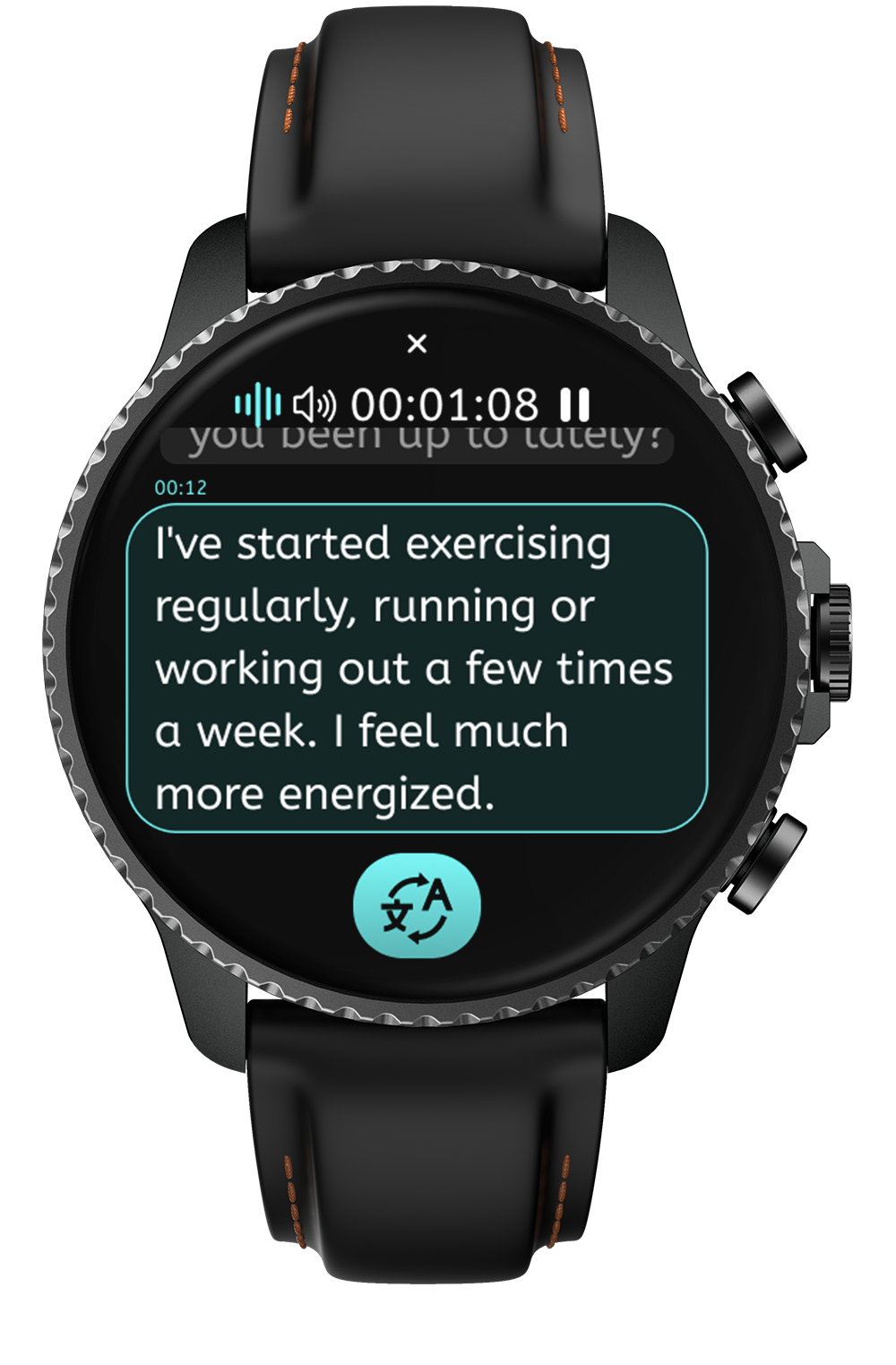
In the TicNote App, tap the recording animation to start live transcription, or go to the Translation tab and tap Listen & Translate. The watch screen will mirror the phone's content in real time. During recording, live transcription or translation results are automatically mirrored to the watch.
* The app must remain in live transcription or translation mode. Minimizing the app does not affect this feature.
24-hour heart rate tracking
Real-time SpO2 monitoring
Sleep quality analysis
Stress assessment + breathing exercises
Workout Tracking
Supports multiple workout modes with real-time data tracking. For the most accurate health readings, wear the watch about one finger-width above the wrist bone and ensure the heart rate sensor area sits snugly against your skin.
Battery Saver disables certain sensors and network features to extend battery life.
Triggers:
• Automatically activates after prolonged standby
• Low-battery alert at 20%
• Auto-activates at 10%
• Swipe down to toggle manually
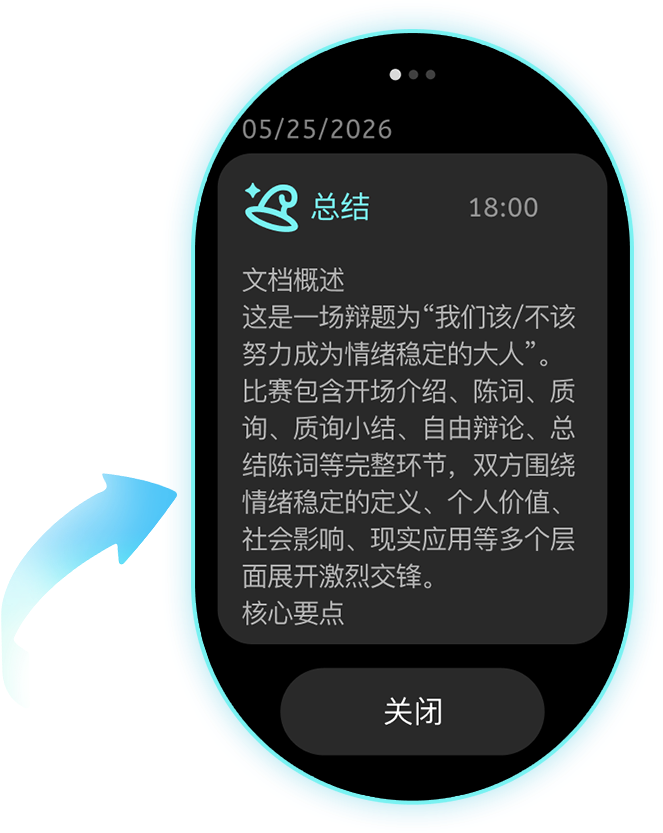
When a meeting summary is ready, the watch receives a notification (requires app push notifications to be enabled). Tap to view the summary. On the watch face, swipe up to browse past summaries — swipe left/right to cycle through the 3 most recent, each showing the first 150 characters.
Warranty Policy
TicNote Watch comes with a 12-month warranty. A valid product serial number is required. Damage caused by misuse (water damage, drops, unauthorized disassembly, etc.) is not covered.
Contact Support
Email: support@mobvoi.com
In-app feedback: App → Me → Dedicated Support
Hours: Mon–Fri 9:00–18:00 (excluding holidays)